How to send an RS.GE waybill for a sale
You can send a waybill straight from the till, from the current cart, or for a completed sale from the sales list.
What you need
- Your RS.GE username and password in the cabinet: "Organization settings" or the branch's "Edit" → "RS.ge connection". "Test" shows whether they are correct.
- Sending from the till needs the waybill permission — managers, admins and owners have it by default, cashiers do not.
- An internet connection: waybills cannot be sent offline.
Steps
Add goods to the cart
Scan or search for products at the till as usual. The waybill button does nothing with an empty cart.
Click "RS.GE"
The button is in the bottom bar of the till, next to "Cash register". The "RS.GE waybill" window opens.
Choose the waybill type
"Without transport" (default) or "With transport". Without transport, the delivery address equals the start address.
Fill in the buyer
"Buyer" — ID/TIN and name. The start address is prefilled with the branch address.
With transport — vehicle and driver
Delivery address, transport type, plate number, driver's ID and name, date and time. The program remembers these for next time.
Check the goods and send
Optionally add a "Comment" and click "Send to RS.GE". On success you see "Waybill #N created".
Good to know
- For a completed sale, send the waybill from the "Sales" page — the 🚛 button on the sale row. Buyer details come from the sale, and afterwards the row shows "🚛 uploaded №N".
- If a waybill was already sent for this sale, the program warns you and asks before creating a second one.
- Waybills are sent to RS.GE as active. Cancelling or closing them is done on rs.ge.
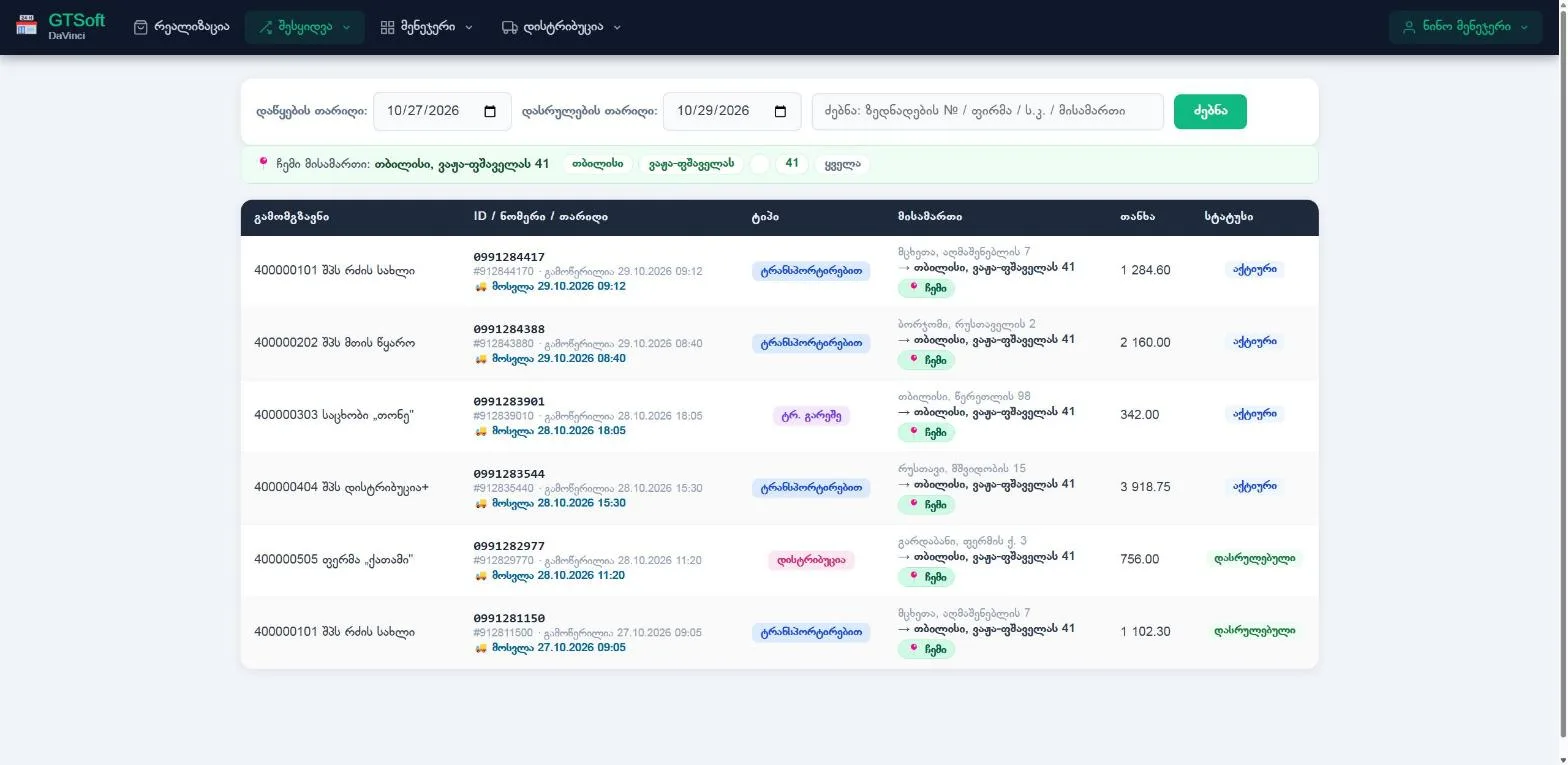 Module overviewRS.GE waybillsSend and receive waybills directly from the program.