How to receive goods with a supplier's RS.GE waybill
The supplier's waybill comes into GTSoft and becomes stock. Known products are received with one button; new ones you describe once.
What you need
- RS.GE credentials in the cabinet (for the branch or the organization).
- The RS purchase and receiving permissions — managers, admins and owners have them by default.
Steps
Open "RS purchase"
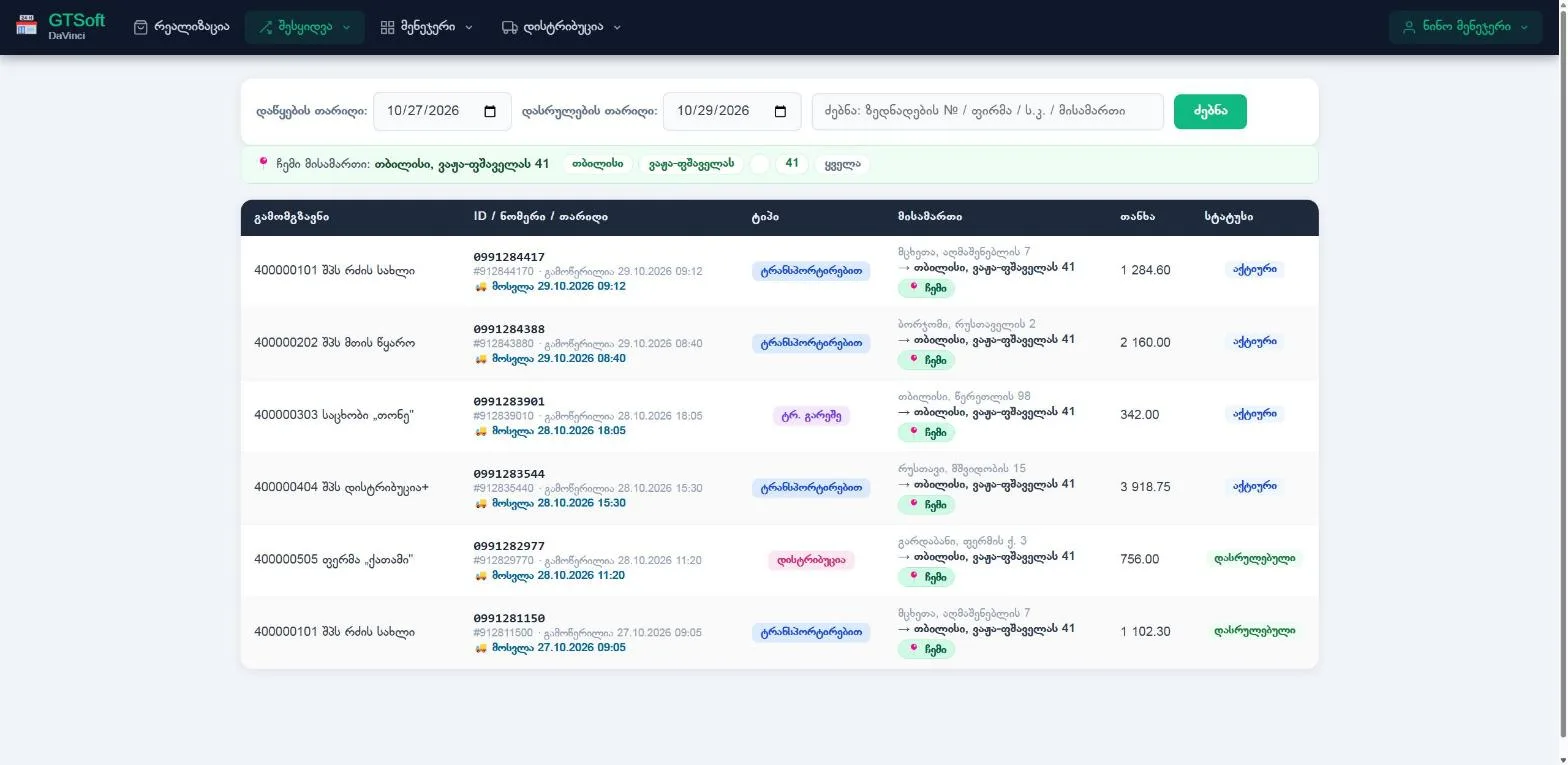
Menu "Purchase" → "RS purchase".
Search for waybills
Set the start and end dates and click "Search". One search covers at most 2 days.
Open a waybill
Each line is marked "✓ known", "≈ by name" or "unknown code".
Receive known products in one go
"Receive known" takes the lines whose barcode exactly matches one of your products. It does not change prices or product cards.
The rest — by hand
"Enter manually" opens the purchase form with the supplier, document number and date filled in. For each line, correct the barcode, name or price if needed and click "Receive".
Finalize the waybill
"✓ Finalize" → "Finalize waybill". The total is recorded as supplier debt; optionally enter the amount paid and click "Confirm".
Good to know
- If you replace a supplier's barcode with your own during manual entry, the program remembers the pair and swaps it automatically on that supplier's later waybills.
- If the waybill was already entered in another branch, you get a warning — entering it again would double the stock.
- If the supplier changed the waybill after you entered it, the list shows "N lines changed on RS" with a "Fix" button.
- Receiving updates GTSoft stock; it does not confirm the waybill on RS.GE.
 Module overviewRS.GE waybillsSend and receive waybills directly from the program.